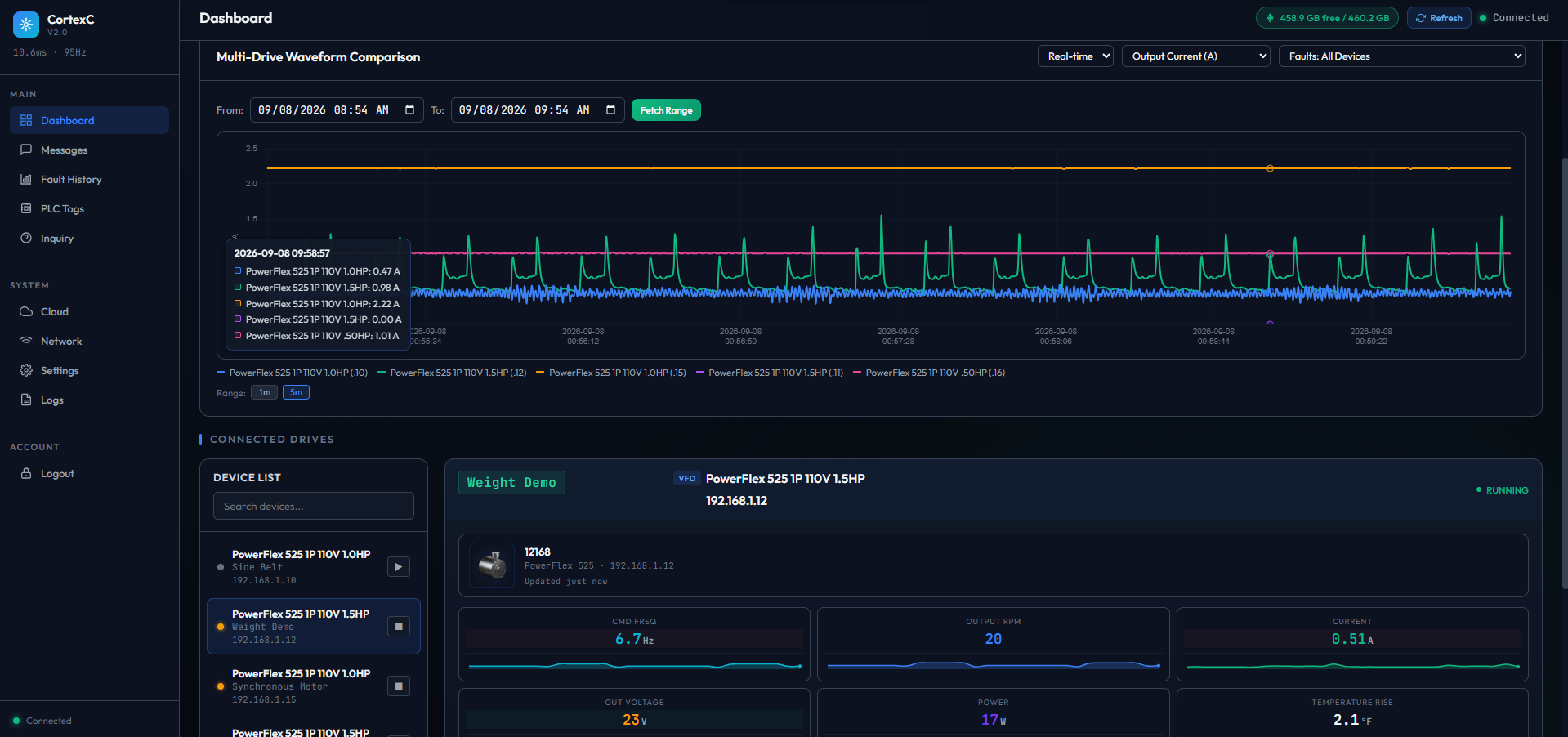
Every drive on one chart
Output current, frequency, speed, voltage and power from each drive, laid over each other, live or over any logged range. The one running differently stands out.

Monitoring, temperature prediction and fault protection for the drives you already run, with no new equipment.
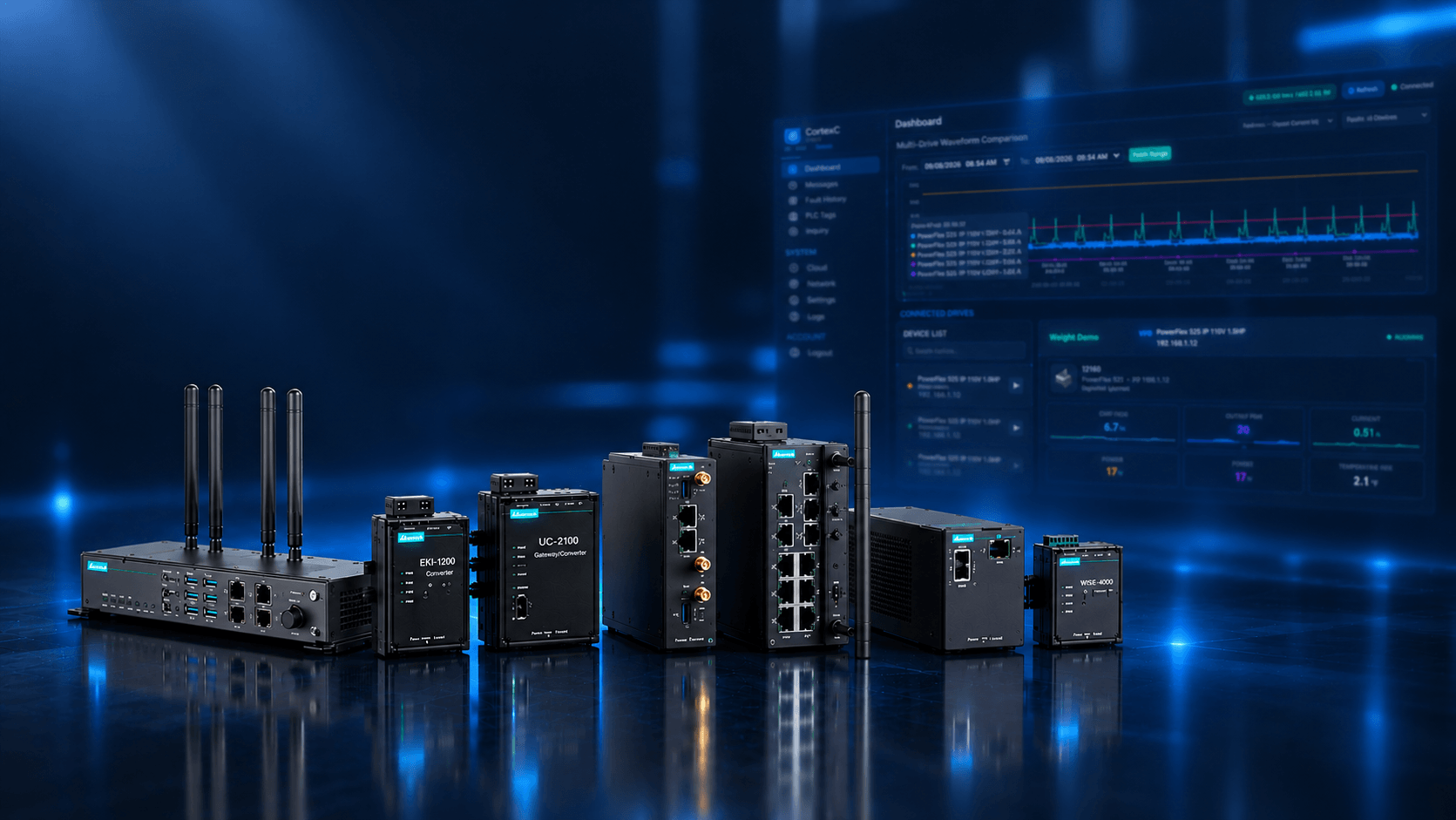
A Moxa industrial computer or a Windows PC on the same network as your drives. Neither needs the internet to install.
Works with:
Cortex reads current and torque from each drive, keeps every reading on the device, and serves its dashboard to any browser on the network.
Output current, frequency, speed, voltage and power from each drive, laid over each other, live or over any logged range. The one running differently stands out.
Predicted from the drive's own data and shown beside its live readings. These are the Weight Demo drive's.
Put a condition on any reading and choose whether Cortex only reports it or stops the motor.
293 files · 1.2 GB · 6.5 days
General data, parameters and fault conditions, per device, exportable as CSV from the Logs page.
operator-line-2
Create a login per operator and grant only the screens it needs. Keep the controls that move machinery for engineering staff.
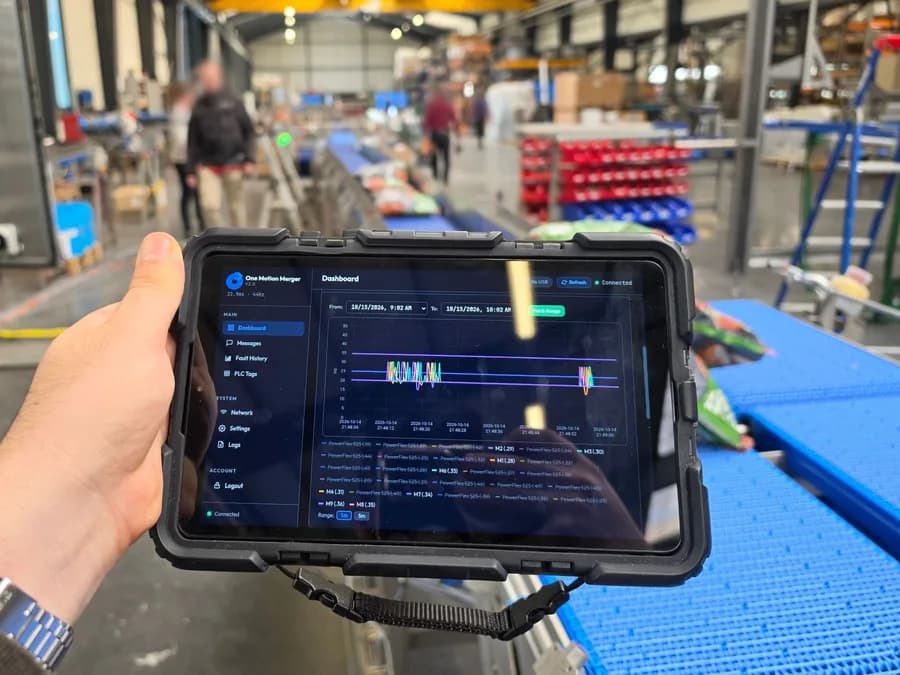
Cortex serves its dashboard to any browser on the network, so a rugged tablet at the conveyor shows the same live charts as the PC in the office.
The Cortex Device Manager installs Cortex on a Moxa from your Windows PC, over one Ethernet cable. The guide walks every screen.
Run CortexDeployer on your Windows PC. It installs for your user only, so Windows doesn't ask for administrator rights.
Ready to Install
Setup is now ready to begin installing Cortex Device Manager on your computer.
Click Install to continue with the installation.
Cable the PC to the device's LAN port, scan, and sign in with the device's own account.
Device address
Sign in as
Password
Choose the account you'll sign in to Cortex with. The first install applies it.
Web interface administrator
User name
Password
Confirm password
Web UI port
The manager copies the package, applies your settings and starts the service. The Status tab says when it's reachable.
Cortex is running and the web interface is reachable
Admin account
password set
Ready to Install
Setup is now ready to begin installing Cortex Device Manager on your computer.
Click Install to continue with the installation.
This is One Motion's weight demo: a direct-drive motor lifting a stack of 20 lb plates, with Cortex charting the drive on the screen behind it. In Cortex, that drive is the one named Weight Demo.
Watch on YouTubeBoth installers are Windows programs. Pick the one for the computer Cortex will run on.
Cortex Device Manager
CortexDeployer-1.0.0.exe · 29.9 MB
Cortex Setup
CortexSetup-1.0.0.exe · 11.9 MB
Still stuck? Call (479) 358-1173 or email om.support@actionpaq.com.
No. The installer carries the Cortex package, and the PC reaches the device over an Ethernet cable. Neither the PC nor the device needs internet during the install.
Moxa UC-2200 and UC-3420A series computers (Debian 11 or 13, ARM64), and 64-bit Windows 10 or 11 computers.
PowerFlex 525 drives and CompactLogix PLCs over EtherNet/IP, on the same network as the computer running Cortex. Connect them before you install: drives added later are polled after the device restarts.
In a browser, at http://<device-ip>:8000, or your port if you changed it. On Windows, Setup opens http://localhost:8000 for you.
A new UC-2200A signs in as moxa / moxa and answers on LAN 2 at 192.168.4.127. Change that password before the device joins the plant network.
Yes. Under Login, create an account per operator, set its password, and grant it only the screens it needs.
Settings › Export Everything saves the settings, the device list and every motor profile to one file. Import Everything loads it on another unit.
The Downloads page lists each installer's SHA-256. Run Get-FileHash in PowerShell on the file and compare the two.
Pick the computer Cortex will run on and follow the guide, screen by screen. No account to create, and the device never needs the internet.
